How to amend a current page
Introduction
This page describes how to edit an existing basic page in Drupal, the School’s website content management system (CMS).
Content
There are two ways to edit an existing basic page in Drupal:
1. From the main content page in the admin UI (/admin/content):
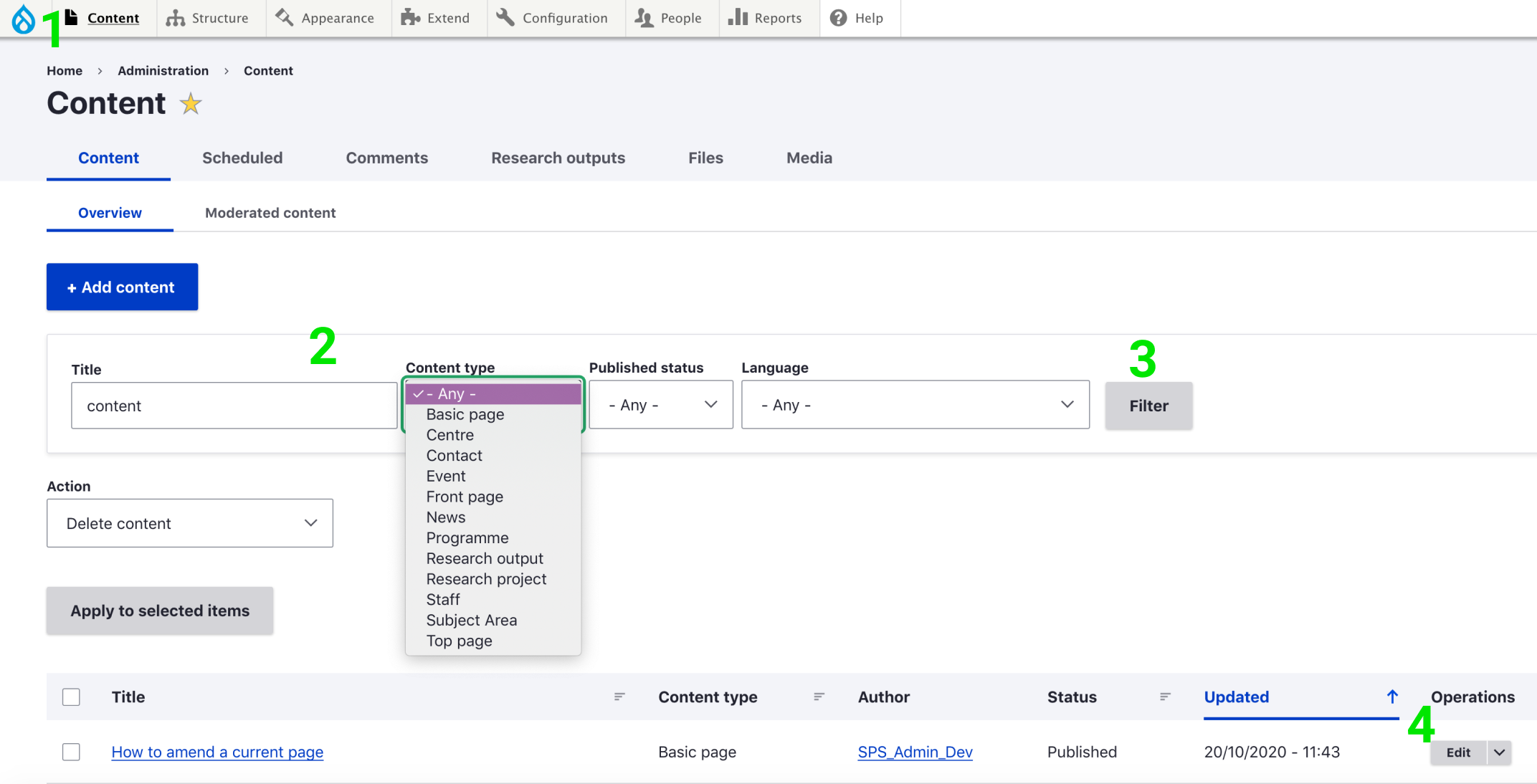
- Click ‘Content’ in the admin menu bar.
- In the search/filter section, type the name of the page you would like to edit, or filter by content type in the dropdown provided, or both options at the same type.
- Click 'Filter'.
- Once the results have been returned, click on 'Edit' in the same row of the page that needs to be edited.
2. Alternatively, if the page that you would like to edit is already open, click 'Edit' on the tabs placed between the main navigation and the breadcrumbs.
3. Edit the fields that need to be amended.
4. In the ‘Revision log message’ field add a message describing the changes introduced (e.g. ‘Add missing comma on second paragraph’).

5. Click 'Save' at the bottom of the editing page. You will see a green message at the top of the page confirming that the page has been updated.

How to preview your changes
If your would like to preview your changes before saving:
1. Click the grey button 'Preview' at the bottom of the edit page.

2. Click the link 'Back to content editing' at the top of the preview.

3. Once you are happy with the changes click the blue button 'Save' at the bottom of the edit page.
How to undo your changes
When you click on the Revisions tab (placed between the main navigation and the breadcrumbs), you can view the individual revisions, revert to an earlier revision, and delete revisions.

It is a good idea to add a meaningful message here whenever you edit a page so that others (or you, months later) can see why you changed the page and what your changes were.

If you would like to revert to a previous change, click the 'Revert' button placed at the right side of the revert message you would like to go back to.